Tripo 3D’s image to GLB tool turns a single photo into a textured mesh you can use in Blender, Unity, Unreal, or a web viewer. The GLB format bundles geometry, materials, and textures in one binary file, which makes it the cleanest handoff point for real-time projects. This page looks at the software that reads GLB, the conversion flow, and the import errors that show up when the mesh lands in a new editor.
Image to GLB, Without the Export Pipeline
Who needs a binary 3D format? Software support at a glance
GLB is the default exchange format for engines, but not every editor reads it natively. The comparison below shows why the format matters and where an obj to glb source file can change the outcome.
If your destination app expects separate files, a glb to obj pass keeps the mesh intact while unpacking the material references.
The tool block for GLB conversion
The photo-to-GLB conversion works best with a single subject, a clear background, and even lighting. The result is a ready-to-import model with textures already assigned.
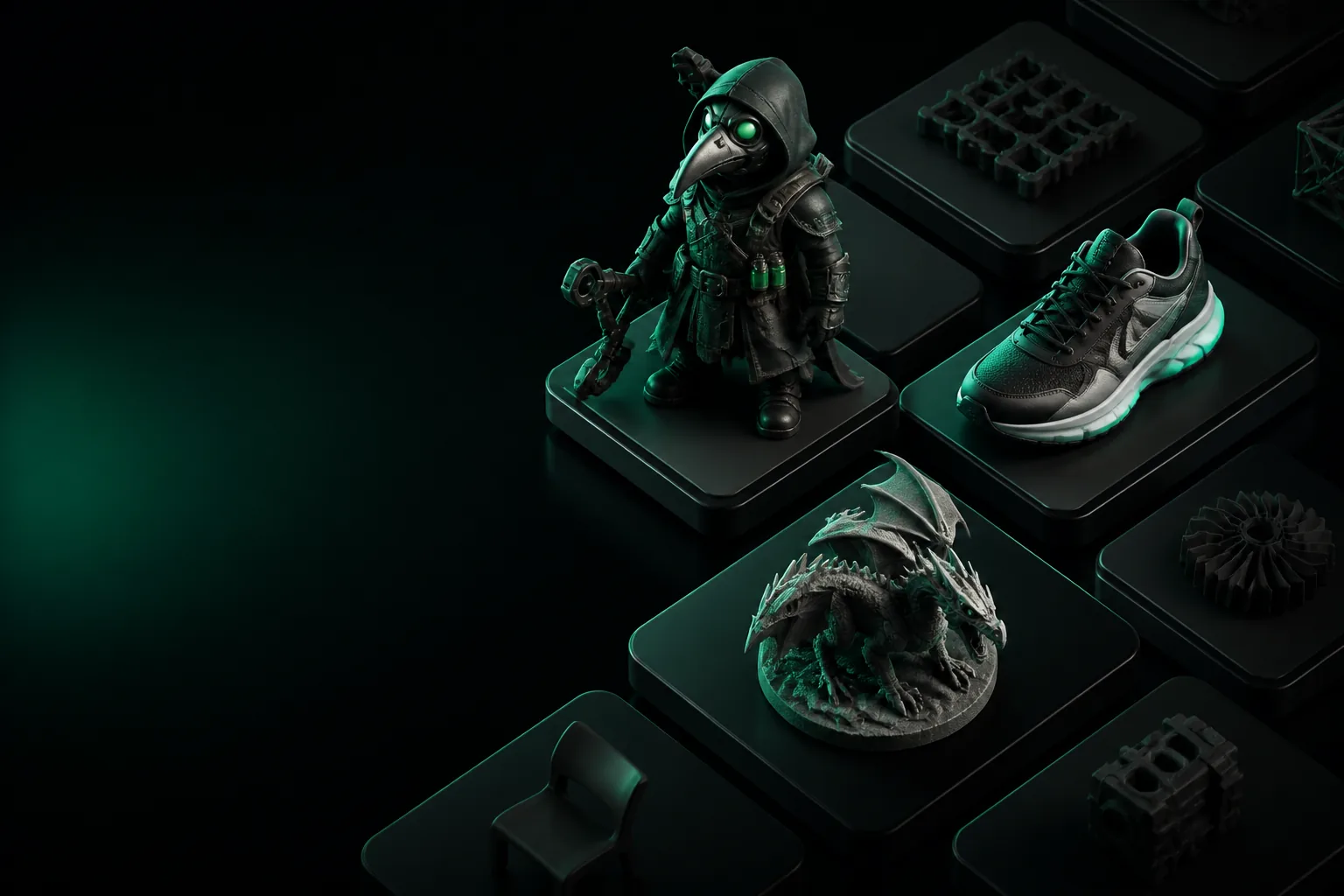
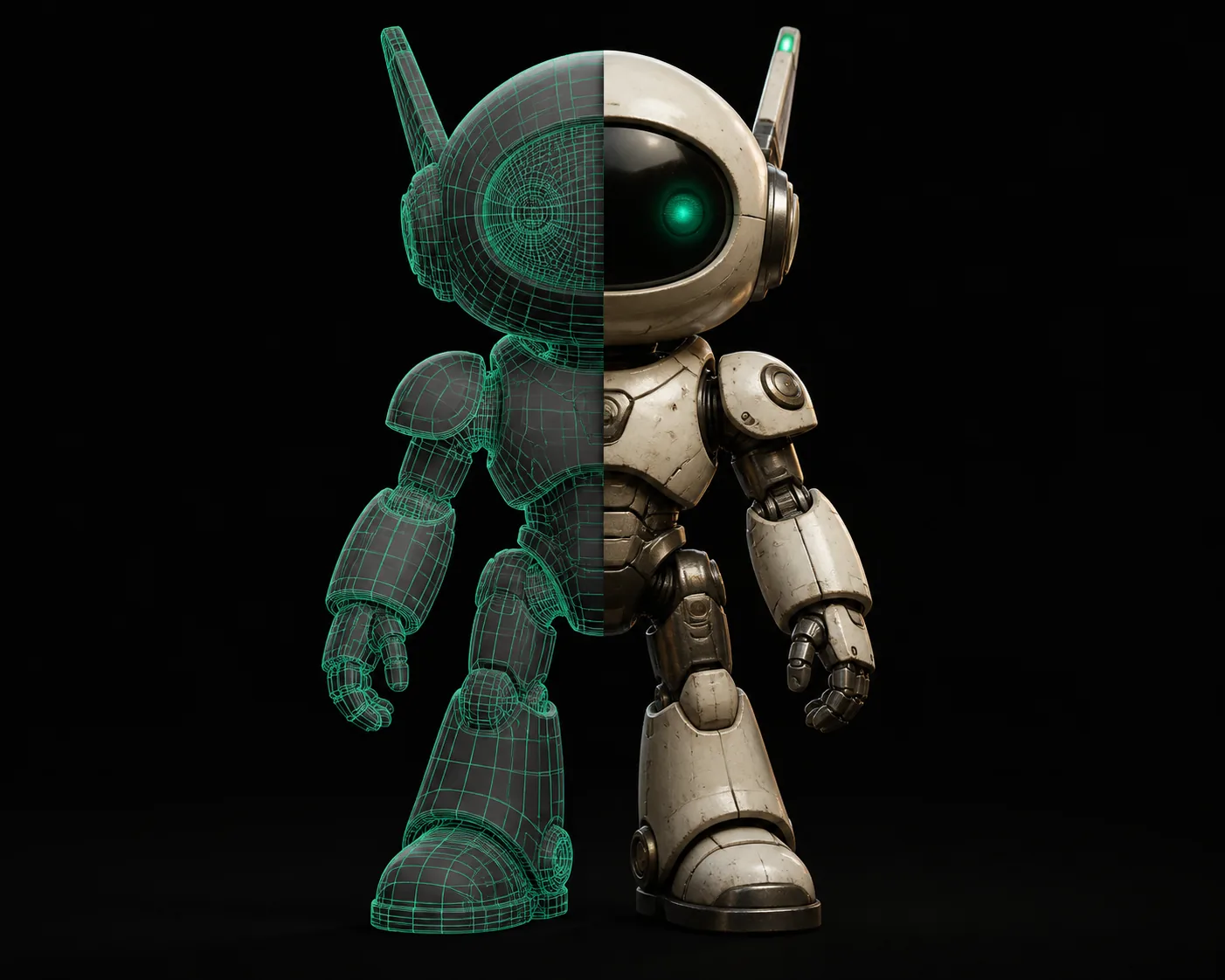
The mesh exports with baked base color, normal, and roughness maps. For a source that starts as a scanned print, run it through png to stl first when you need displacement geometry.
Import steps after the mesh lands in your editor
The personas below map the common GLB import paths and the conversion detour that each team usually needs.
Blender artist
Scenario: sculpting over a photogrammetry base. Outcome: one mesh with materials assigned. For animation-ready topology, run a glb to obj pass and keep the UVs intact.
Unity developer
Scenario: adding a runtime prefab with PBR maps. Outcome: drag the GLB into the Asset Browser. When the source is an OBJ, the obj to glb route keeps materials separate.
Print-to-animation studio
Scenario: moving an STL print model into a skinned pipeline. Outcome: clean quad flow before rigging. A stl to fbx detour helps when the mesh needs to move through Autodesk tools first.
Unreal environment artist
Scenario: building a Nanite-ready library in Unreal. Outcome: GLB imports quickly with collision. For engine pipelines that start from FBX, the fbx to glb conversion produces a single file.
Texture artist
Scenario: testing fabric scans as displacement maps. Outcome: GLB texture slots survive export. If you start from a heightmap, the png to stl route can generate the base geometry first.
Print service
Scenario: receiving a 3MF and needing a GLB preview. Outcome: no re-model needed. The 3mf to stl intermediate also keeps the print volume intact.
Common import errors and how to avoid them
Most GLB imports fail at one of four points. Run through these checks when the mesh looks untextured, tiny, or broken in the viewport.
Check the base color slot
GLB stores the texture in the base color channel. If the import lands untextured, look for a second material slot with the same map before re-exporting.
Disable Draco for older engines
Some editors fail on compressed geometry. Re-export without Draco and the mesh will load everywhere, with a slightly larger file.
Confirm the scale unit
GLB stores physical units in meters. If the model arrives tiny in Blender or Unity, change the import scale to 1, not 0.01.
Rewrite normal maps for your engine
OpenGL and DirectX interpret green channels differently. Flip the green channel in Unreal if the lighting looks inverted.
Variant FAQ
What does a GLB conversion from a photo produce?
It takes a single image and reconstructs it as a 3D mesh, then packages geometry, textures, and materials into one .glb file. The output is usable in real-time engines without extra export steps.
Can a photo-to-GLB conversion preserve textures?
Yes. The generated model includes a base color map plus normal and roughness channels. The textures are bundled inside the GLB, so you do not need to keep the source image next to the mesh.
Which software imports GLB without plugins?
Blender 2.80+, Unity, Unreal Engine, Godot, and most web viewers load GLB natively. For older DCC tools, convert to a more common format first.
Is GLB better than OBJ for a game engine?
For real-time use, yes. GLB keeps the PBR material graph and animation data in one binary file, while OBJ needs external maps and a separate material library.
The same conversion family covers neighboring formats. If you start from a photo, glb to obj gives you a CAD-friendly mesh when you need to edit topology. obj to glb pulls an existing OBJ into a single file, and stl to fbx bridges print geometry into animation software. fbx to glb keeps rigs intact for game engines. Need the reverse direction? See png to stl for carving a heightmap, or 3mf to stl for print-safe output.